

Suganya Thangavel
Introduction to Chart of Accounts (COA)
What is COA?
The Chart of Accounts (COA) is the foundational structure of an organization’s financial accounting system. It is a listing of all accounts used in the general ledger to record and classify financial transactions. In Oracle Fusion, the COA is implemented as a Key Flexfield structure that defines how account combinations are created and validated.
A well-designed COA provides a systematic way to organize financial information, enabling businesses to track revenues, expenses, assets, liabilities, and equity in a structured manner. Each account in the COA has a unique identifier and is categorized by its financial statement classification.
Why We Need COA?
The Chart of Accounts is essential for several critical business functions:
- Financial Reporting: Provides the structure needed to generate accurate financial statements including Balance Sheet, Income Statement, and Cash Flow reports.
- Regulatory Compliance: Ensures adherence to accounting standards (GAAP, IFRS) and supports audit requirements.
- Decision Making: Enables management to analyze financial performance and make informed business decisions.
- Transaction Processing: Serves as the foundation for all financial transactions in the ERP system.
- Cost Tracking: Allows organizations to track costs by department, project, or any other dimension.
Use of COA
The COA is used throughout the Oracle Fusion Financials application for:
- Journal Entries: Every journal entry requires a valid account combination from the COA.
- Subledger Integration: AP, AR, and other subledgers derive accounting entries based on COA structure.
- Budgeting: Budgets are created and tracked against COA account combinations.
- Intercompany Transactions: Facilitates tracking and elimination of intercompany transactions.
- Multi-dimensional Analysis: Enables reporting across multiple segments like Company, Department, and Account.
COA Configuration Steps
| Task | Navigation Path |
|---|---|
| Manage Value Sets | Setup and Maintenance > Financials > General Ledger > Manage Value Sets |
| Manage Chart of Accounts | Setup and Maintenance > Financials > General Ledger > Manage Chart of Accounts Structures |
| Manage Primary Ledger | Setup and Maintenance > Financials > General Ledger > Manage Primary Ledger |
Step-by-Step Configuration Overview
The COA configuration process involves the following major steps:
- Create Value Sets: Define the valid values for each segment (Company, Account, Department, Future).
- Create Key Flexfield Segments: Map value sets to segments with appropriate labels.
- Create COA Structure: Define the overall structure with delimiter and segment sequence.
- Create Structure Instance: Create an instance linking the structure to value sets.
- Deploy Flexfield: Deploy the flexfield to make it available for use.
- Create Primary Ledger: Link the COA to a ledger for transaction processing.
- Manage Values: Add specific values to each value set.
Step 1: Create Value Sets
Value Sets define the valid values that can be entered for each segment of the Chart of Accounts. In this configuration, we create four value sets:
| Value Set | Purpose | Segment Label |
|---|---|---|
| GK_COMPANY | Stores legal entity/company codes | Primary Balancing Segment |
| GK_NATURAL_ACCOUNT | Stores account numbers | Natural Account Segment |
| GK_DEPARTMENT | Stores cost center/department codes | Cost Center Segment |
| GK_FUTURE_USE | Reserved for future expansion | None |
1.1 Create GK_COMPANY Value Set
The GK_COMPANY value set stores legal entity/company codes. This is configured as the Primary Balancing Segment.
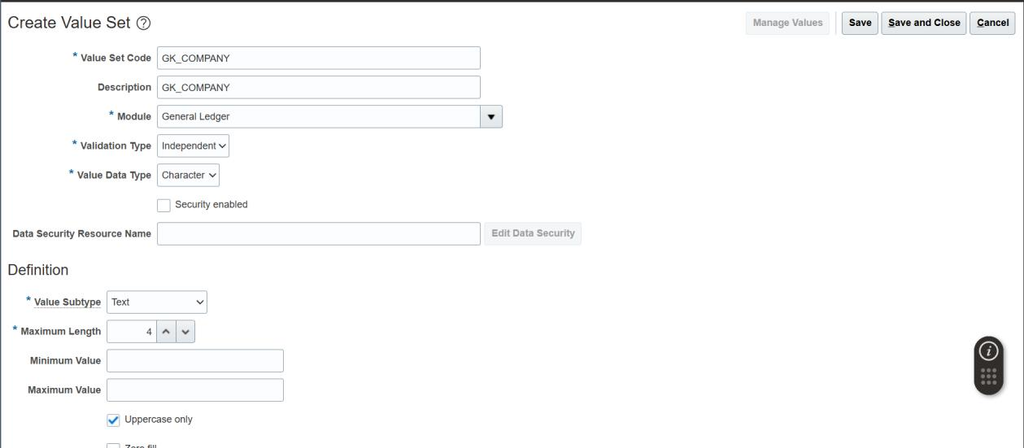
Figure 1: Creating GK_COMPANY Value Set
Configuration Details
| Field | Value | Description |
|---|---|---|
| Value Set Code | GK_COMPANY | Unique identifier for the company segment |
| Module | General Ledger | Used in GL and subledgers |
| Validation Type | Independent | Values are manually entered/loaded |
| Value Data Type | Character | Allows alphanumeric codes |
| Maximum Length | 4 | Maximum characters allowed |
1.2 Create GK_NATURAL_ACCOUNT Value Set
The GK_NATURAL_ACCOUNT value set stores account numbers for Assets, Liabilities, Equity, Revenue, and Expenses.
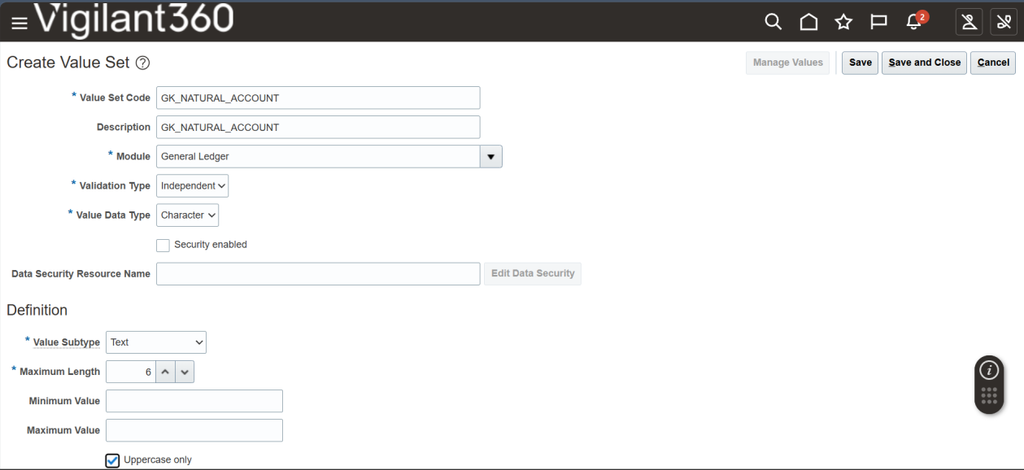
Figure 2: Creating GK_NATURAL_ACCOUNT Value Set
Configuration Details
| Field | Value | Description |
|---|---|---|
| Value Set Code | GK_NATURAL_ACCOUNT | Stores natural account numbers |
| Module | General Ledger | Used for financial reporting |
| Validation Type | Independent | Full control over allowed values |
| Value Data Type | Character | Allows codes like 1010, 2020 |
| Maximum Length | 6 | Supports longer account codes |
1.3 Create GK_DEPARTMENT Value Set
The GK_DEPARTMENT value set stores cost center/department codes for tracking expenses by department.
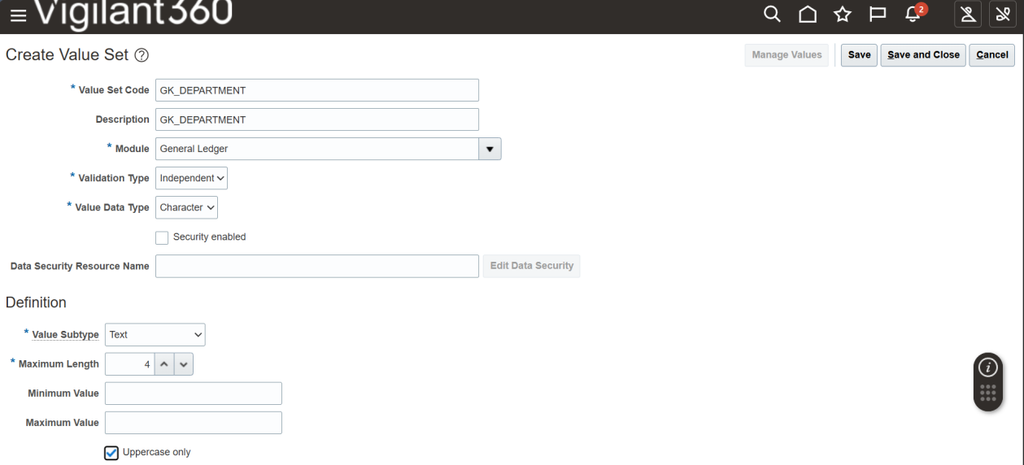
Figure 3: Creating GK_DEPARTMENT Value Set
Configuration Details
| Field | Value | Description |
|---|---|---|
| Value Set Code | GK_DEPARTMENT | Stores department/cost center codes |
| Module | General Ledger | For budgeting and managerial reporting |
| Validation Type | Independent | Manual value entry |
| Value Data Type | Character | Alphanumeric department codes |
| Maximum Length | 4 | Standard department code length |
1.4 Create GK_FUTURE_USE Value Set
The GK_FUTURE_USE value set is reserved for future expansion or intercompany tracking.
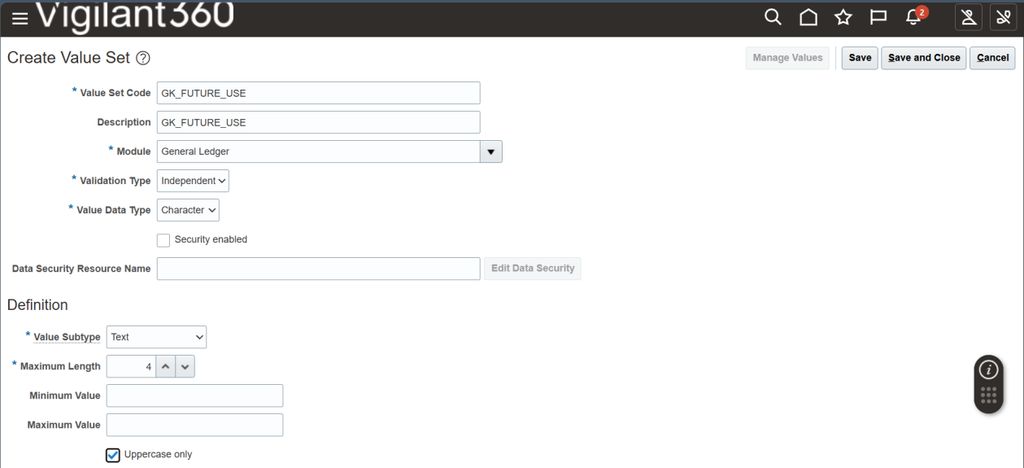
Figure 4: Creating GK_FUTURE_USE Value Set
Configuration Details
| Field | Value | Description |
|---|---|---|
| Value Set Code | GK_FUTURE_USE | Reserved for future expansion |
| Module | General Ledger | Flexibility for new dimensions |
| Validation Type | Independent | Full control over values |
| Value Data Type | Character | Alphanumeric values |
| Maximum Length | 4 | Standard length |
Step 2: Create Key Flexfield Segments
After creating value sets, we need to create segments that map to these value sets. Each segment is assigned appropriate labels for system functionality.
2.1 Create GK_COMPANY Segment
The Company segment is configured with the Primary Balancing Segment label, which is required for financial consolidation.
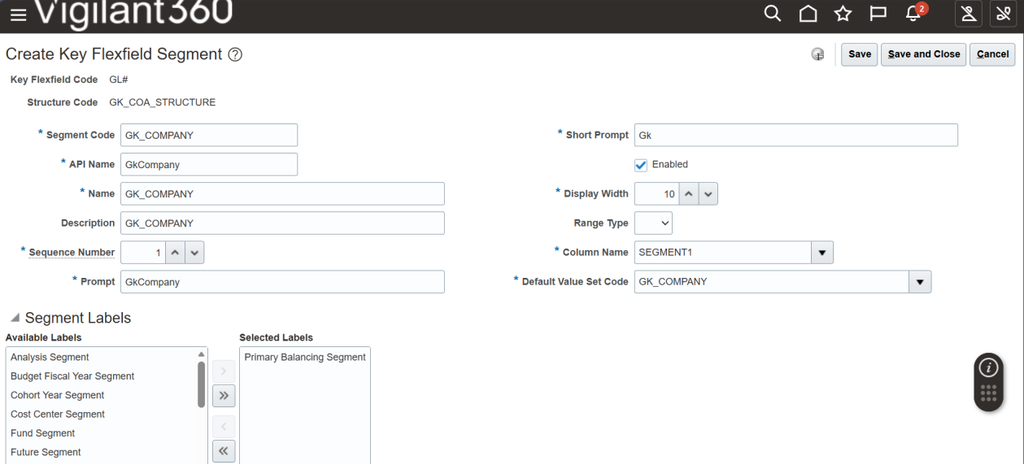
Figure 6: GK_COMPANY Segment with Primary Balancing Segment Label
Segment Configuration
| Field | Value | Description |
|---|---|---|
| Segment Code | GK_COMPANY | Links to GK_COMPANY value set |
| API Name | GkCompany | System identifier |
| Sequence Number | 1 | First segment in account combination |
| Column Name | SEGMENT1 | Database column mapping |
| Default Value Set | GK_COMPANY | Associated value set |
| Segment Label | Primary Balancing Segment | Required for consolidation |
2.2 Create GK_ACCOUNT Segment
The Account segment uses the Natural Account Segment label, which enables account type validation.
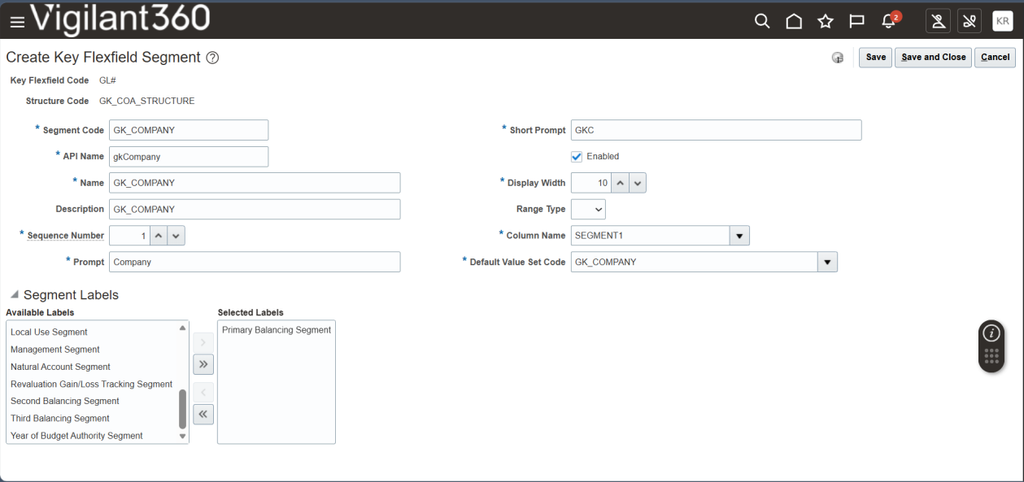
Figure 7: Creating GK_ACCOUNT Segment
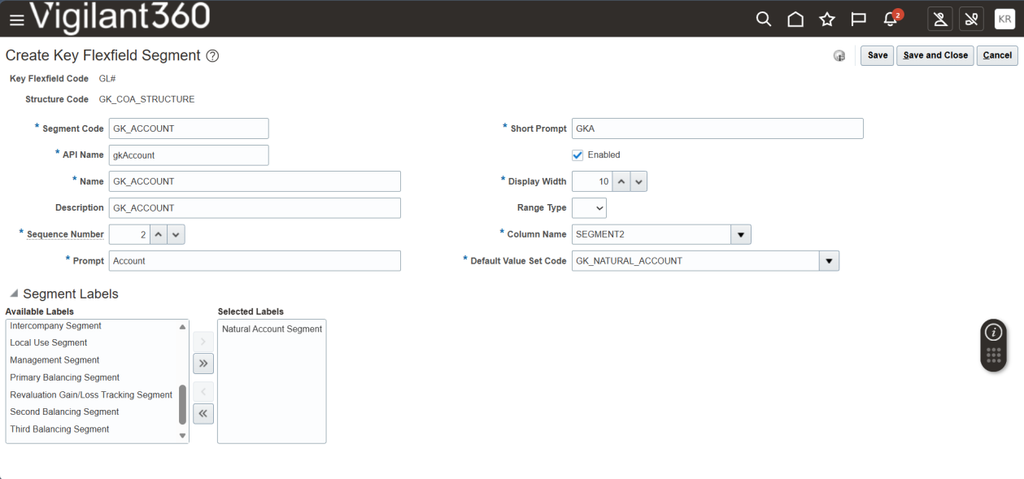
Figure 8: GK_ACCOUNT Segment with Natural Account Segment Label
Segment Configuration
| Field | Value | Description |
|---|---|---|
| Segment Code | GK_ACCOUNT | Links to GK_NATURAL_ACCOUNT value set |
| API Name | gkAccount | System identifier |
| Sequence Number | 2 | Second segment in account combination |
| Column Name | SEGMENT2 | Database column mapping |
| Default Value Set | GK_NATURAL_ACCOUNT | Associated value set |
| Segment Label | Natural Account Segment | Enables account type validation |
2.3 Create GK_DEPARTMENT Segment
The Department segment uses the Cost Center Segment label for departmental expense tracking.
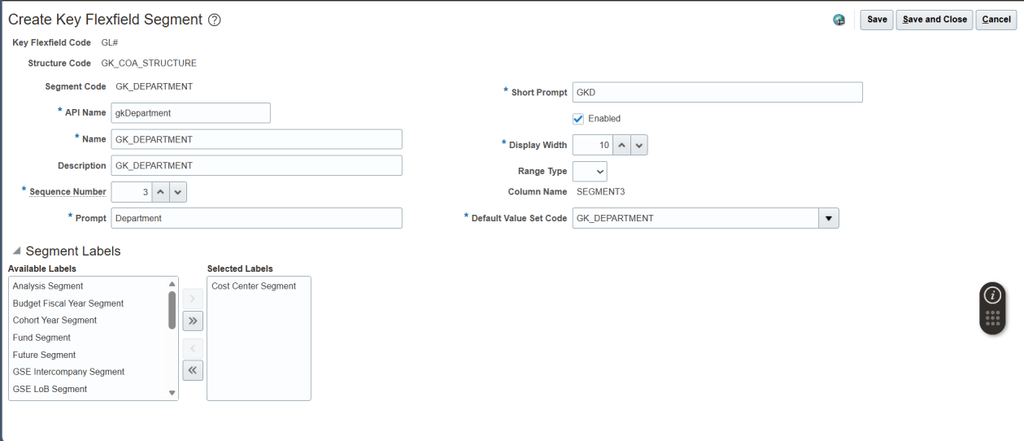
Figure 9: Creating GK_DEPARTMENT Segment
Segment Configuration
| Field | Value | Description |
|---|---|---|
| Segment Code | GK_DEPARTMENT | Links to GK_DEPARTMENT value set |
| API Name | gkDepartment | System identifier |
| Sequence Number | 3 | Third segment in account combination |
| Column Name | SEGMENT3 | Database column mapping |
| Default Value Set | GK_DEPARTMENT | Associated value set |
| Segment Label | Cost Center Segment | For cost tracking |
2.4 Create GK_FUTURE Segment
The Future segment is reserved for future use and does not have a specific label assigned.

Figure 10: Creating GK_FUTURE Segment
Segment Configuration
| Field | Value | Description |
|---|---|---|
| Segment Code | GK_FUTURE | Links to GK_FUTURE_USE value set |
| API Name | gkFuture | System identifier |
| Sequence Number | 4 | Fourth segment in account combination |
| Column Name | SEGMENT4 | Database column mapping |
| Default Value Set | GK_FUTURE_USE | Associated value set |
| Segment Label | None | Reserved for future use |
Step 3: Create COA Structure
The COA Structure defines how all segments come together to form the complete account combination. It specifies the delimiter and the sequence of segments.
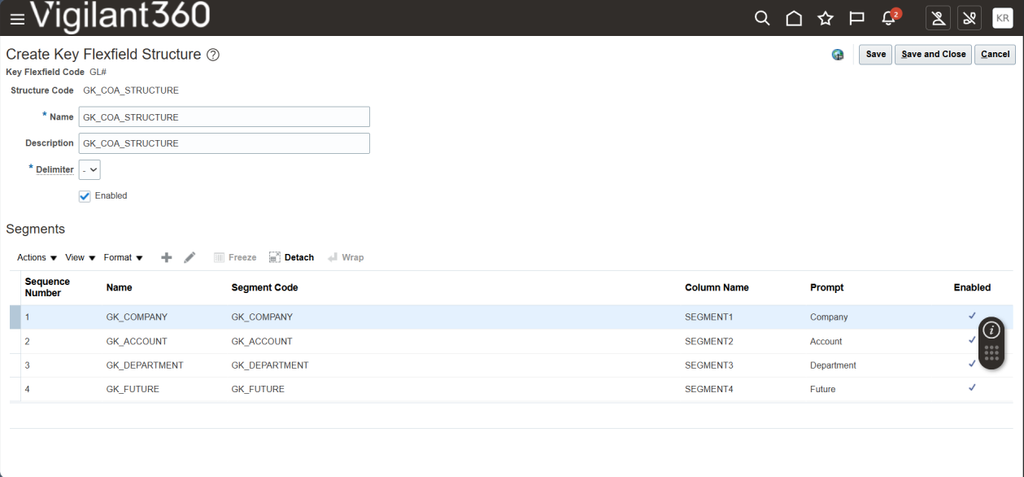
Figure 11: GK_COA_STRUCTURE with All Segments
Structure Configuration
| Field | Value | Description |
|---|---|---|
| Structure Code | GK_COA_STRUCTURE | Unique identifier for the structure |
| Name | GK_COA_STRUCTURE | Display name |
| Delimiter | – | Separator between segments |
| Enabled | Yes | Structure is active |
| Segment 1 | GK_COMPANY | Company (SEGMENT1) |
| Segment 2 | GK_ACCOUNT | Account (SEGMENT2) |
| Segment 3 | GK_DEPARTMENT | Department (SEGMENT3) |
| Segment 4 | GK_FUTURE | Future (SEGMENT4) |
Account Format will be: COMPANY-ACCOUNT-DEPARTMENT-FUTURE (e.g., 01-1010-000-0000)
Step 4: Create Structure Instance
The Structure Instance links the structure definition to actual value sets and enables the COA for use.
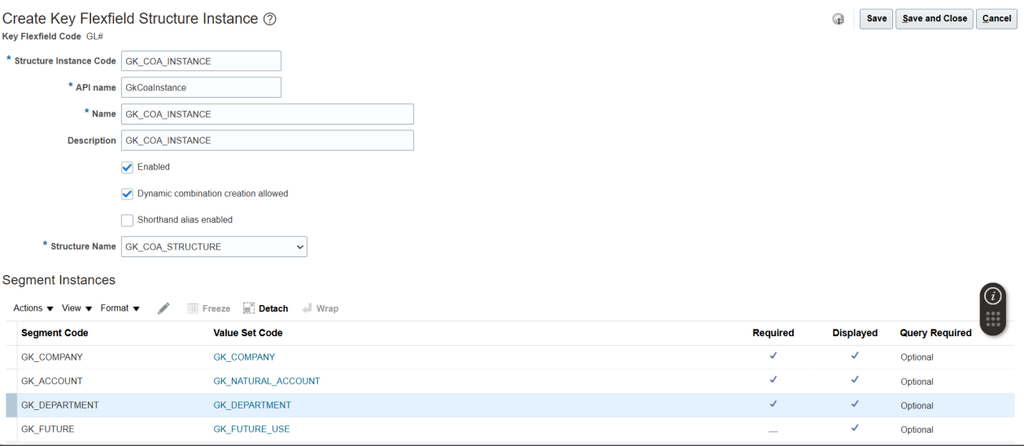
Figure 12: Creating GK_COA_INSTANCE Structure Instance
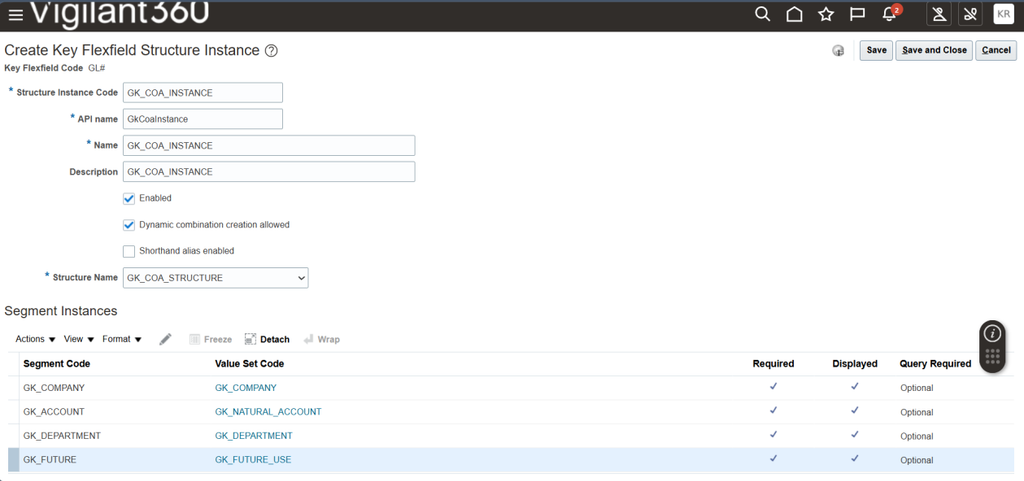
Figure 13: Structure Instance with All Segments Mapped
Instance Configuration:
| Field | Value | Description |
|---|---|---|
| Structure Instance Code | GK_COA_INSTANCE | Unique identifier |
| API Name | GkCoaInstance | System identifier |
| Name | GK_COA_INSTANCE | Display name |
| Enabled | Yes | Instance is active |
| Dynamic Combination | Yes | Auto-creates valid combinations |
| Structure Name | GK_COA_STRUCTURE | Links to structure |
| GK_COMPANY | GK_COMPANY | Company value set |
| GK_ACCOUNT | GK_NATURAL_ACCOUNT | Account value set |
| GK_DEPARTMENT | GK_DEPARTMENT | Department value set |
| GK_FUTURE | GK_FUTURE_USE | Future value set |
Step 5: Deploy Flexfield
After configuring the structure and instance, the flexfield must be deployed to make it available for use in the system.
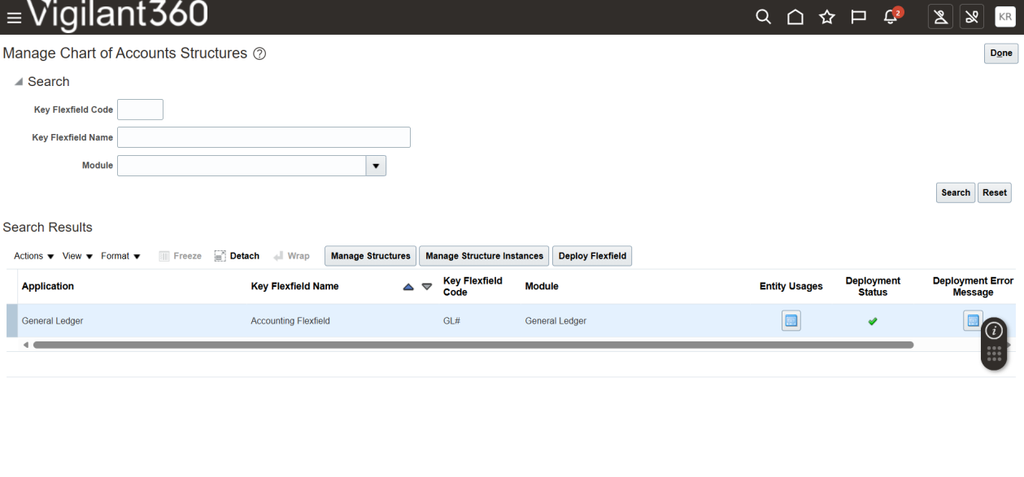
Figure 14: Manage Chart of Accounts Structures – Deploy Flexfield
Click the Deploy Flexfield button to deploy the Accounting Flexfield. The deployment status will show a green checkmark when successful.
Step 6: Create Primary Ledger
The Primary Ledger links the COA to a functional currency and accounting calendar for transaction processing.
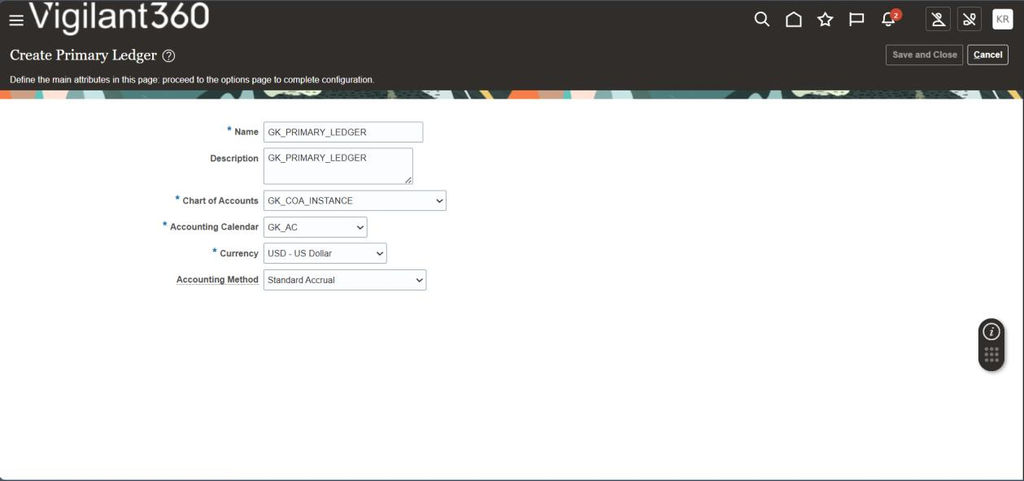
Figure 15: Creating GK_PRIMARY_LEDGER
Ledger Configuration
| Field | Value | Description |
|---|---|---|
| Name | GK_PRIMARY_LEDGER | Ledger identifier |
| Description | GK_PRIMARY_LEDGER | Display description |
| Chart of Accounts | GK_COA_INSTANCE | Links to COA instance |
| Accounting Calendar | GK_AC | Fiscal calendar |
| Currency | USD – US Dollar | Functional currency |
| Accounting Method | Standard Accrual | Accounting basis |
Step 7: Manage Values
After deploying the flexfield, add specific values to each value set. These values will be used in account combinations.
7.1 Manage GK_COMPANY Values
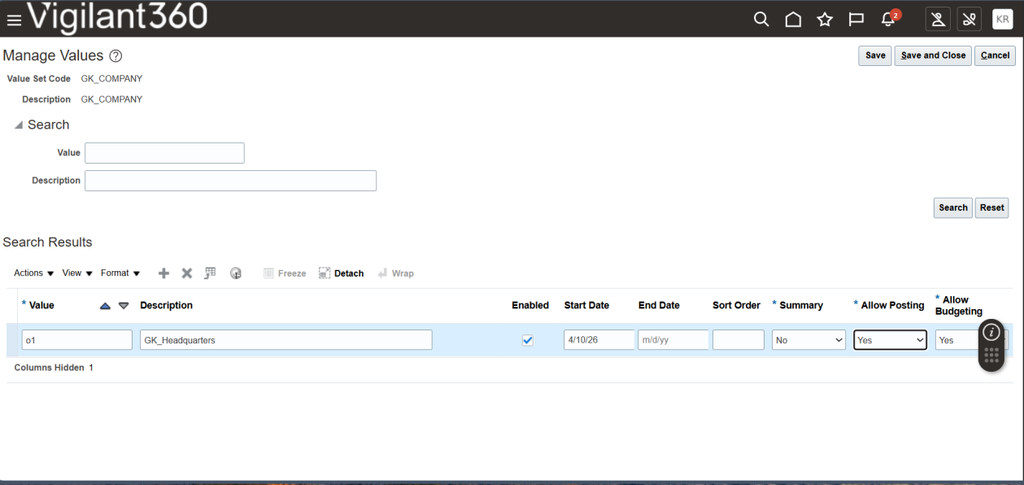
Figure 16: GK_COMPANY Values – Headquarters
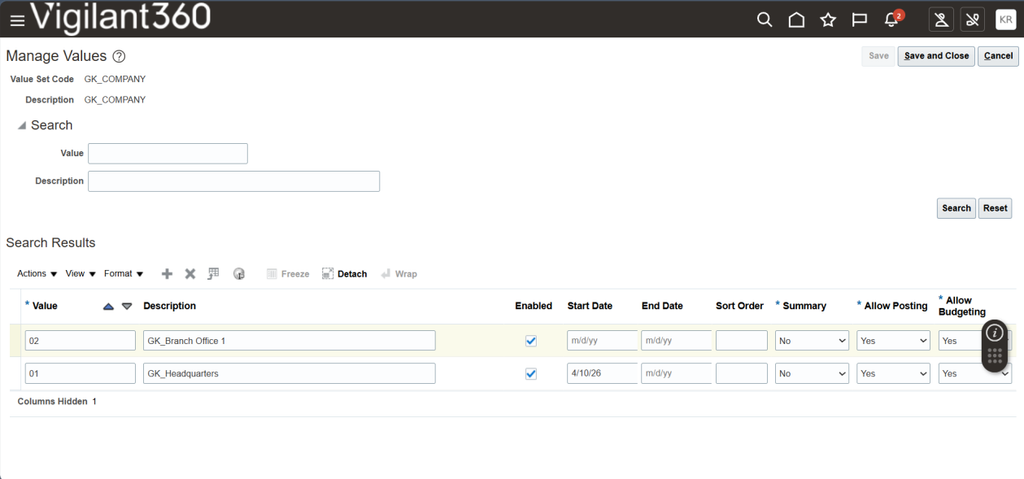
Figure 17: GK_COMPANY Values – All Entries
Company Values
| Value | Description | Purpose |
|---|---|---|
| 01 | GK_Headquarters | Primary legal entity |
| 02 | GK_Branch Office 1 | Secondary location |
7.2 Manage GK_NATURAL_ACCOUNT Values
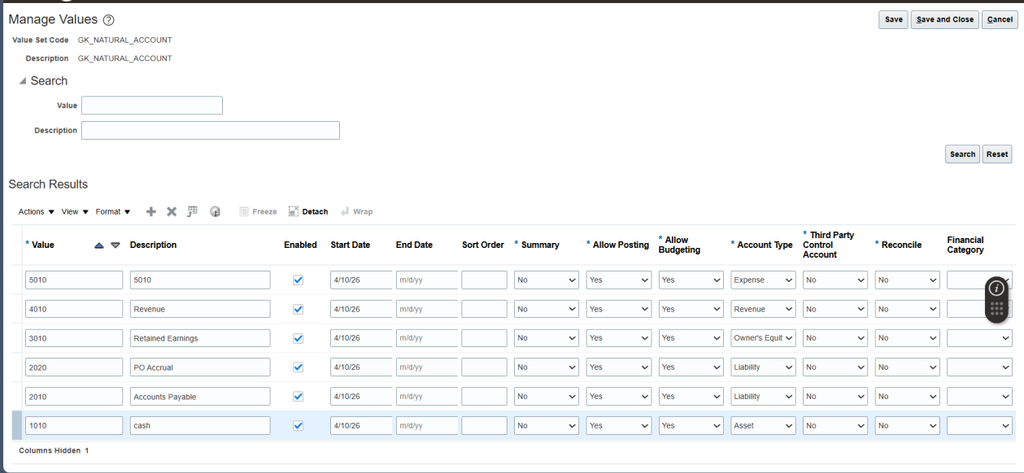
Figure 18: GK_NATURAL_ACCOUNT Values
Natural Account Values
| Value | Description | Account Type | Financial Statement |
|---|---|---|---|
| 1010 | Cash | Asset | Balance Sheet |
| 2010 | Accounts Payable | Liability | Balance Sheet |
| 2020 | PO Accrual | Liability | Balance Sheet |
| 3010 | Retained Earnings | Owner’s Equity | Balance Sheet |
| 4010 | Revenue | Revenue | Income Statement |
| 5010 | 5010 | Expense | Income Statement |
7.3 Manage GK_DEPARTMENT Values
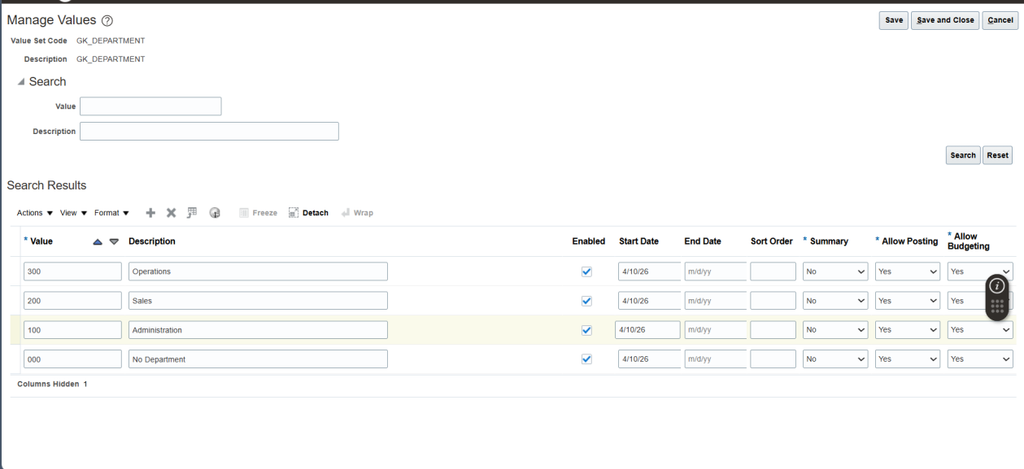
Figure 19: GK_DEPARTMENT Values
Department Values
| Value | Description | Purpose |
|---|---|---|
| 000 | No Department | Default when not applicable |
| 100 | Administration | Executive & administrative |
| 200 | Sales | Revenue generation |
| 300 | Operations | Production & delivery |
7.4 Manage GK_FUTURE_USE Values
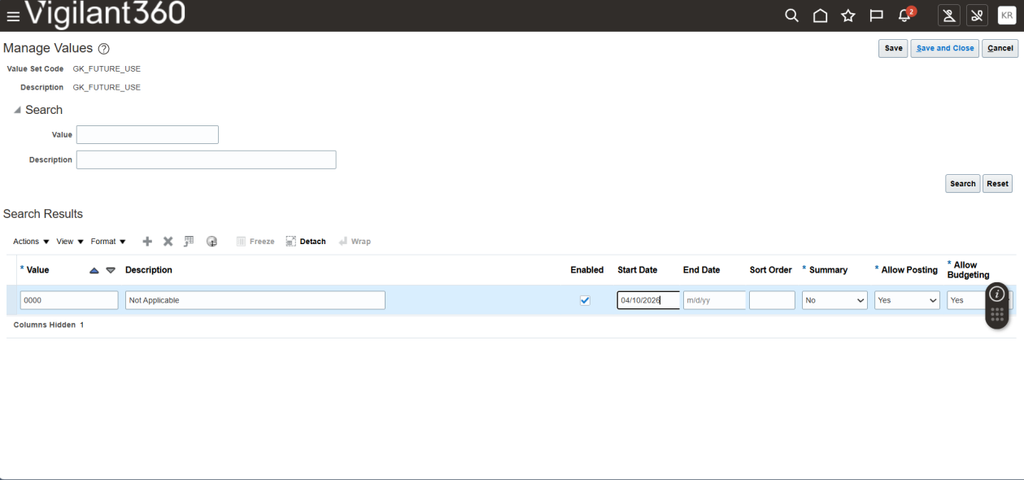
Figure 20: GK_FUTURE_USE Values
Future Values
| Value | Description | Purpose |
|---|---|---|
| 0000 | Not Applicable | Default when future unused |
Value Set Summary
The following table summarizes all value sets created for the COA configuration:
| Value Set | Purpose | Segment Label |
|---|---|---|
| GK_COMPANY | Stores legal entity/company codes | Primary Balancing Segment |
| GK_NATURAL_ACCOUNT | Stores account numbers | Natural Account Segment |
| GK_DEPARTMENT | Stores cost center/department codes | Cost Center Segment |
| GK_FUTURE_USE | Reserved for future expansion | None |
This completes the Chart of Accounts configuration in Oracle Fusion. The COA is now ready for use in journal entries, subledger transactions, and financial reporting.